Switching to WordPress…Eventually!

Post ImageI’ve decided that I am going to switch my blog to WordPress. I am running Community Server 1.1 at the moment, and while it works well enough I know I’d be happier with WordPress. When I have time and have solved the issues with doing such a switch, I’ll make the move.

There’s a very large, very vibrant, and very active community surrounding WordPress. For example, it’s rare to find a blogging tool that supports Community Server – all of them support WordPress. Ditto for widgets and other third party services. Most of all though? WordPress just works the way I want it to.

I’ve used .Text and Community Server for this blog (and DasBlog waaaay back in the day). Blogosphere.ca is still running .Text if you can believe it. My Dad’s blog and the SportsGuru blog we co-author run on MovableType. I’ve played with Blogger, LiveJournal, Windows Live Spaces, and other hosted engines. I’ve seen WordPress used over the last couple years, and was particularly interested when Scoble switched. I started using WordPress quite extensively a couple weeks ago when I started WindowsMediaBlog.com. It became clear to me very quickly that WordPress is the way to go. Easy to setup and configure, easy to manage.

These are the goals I have for the switch:

  1. All posts, comments, trackbacks, etc. migrated to WordPress.
  2. All existing URLs will continue to work. The switch shouldn’t break anything.
  3. Existing content will be “cleaned up” a bit (tags stripped and stored in the database using a widget, for example).

I’ve looked around a little, and have come to the conclusion that the only way to achieve these goals is to write some code. WordPress cannot import from Community Server, and an RSS feed isn’t flexible enough to include comments and trackbacks. BlogML is promising, and it might help to an extent, but only with #1. If anyone has suggestions, I’d love to hear from you!

My blog will likely be the last that I’ll switch to WordPress, actually. EclecticBlogs, SportsGuru, and the Blogosphere.ca blogs will all be migrated first, in varying degrees (Blogosphere will likely be a fresh start using WordPress MU and a static archive of what currently exists). By the time I get to my blog, I should be an expert!

Thoughts? Suggestions? I’m all ears! I’ll share my migration experiences here as I go.

Safari comes to Windows

Post ImageIt’s no secret that an incredibly large number of web developers build sites only for Internet Explorer, ignoring standards and other browsers. It drives me nuts. Unless instructed by the client to focus on a particular browser, I build sites that work on as many different browsers and platforms as possible. Take Podcast Spot, for instance. We want it to work anywhere, no matter what technology the user happens to have installed. So far, I think we’ve done a good job. There’s always room for improvement however.

Since we’re a “Microsoft shop” we don’t have any Macs in the office. For testing, we’ve relied on friends and the incredible BrowserCam service. It would be nice to just have a Mac though. Or, you know, Safari on Windows:

Apple® today introduced Safari™ 3, the world’s fastest and easiest-to-use web browser for Windows PCs and Macs. Safari is the fastest browser running on Windows, based on the industry standard iBench tests, rendering web pages up to twice as fast as IE 7 and up to 1.6 times faster than Firefox 2.

Let me first say that I think this is absolutely fantastic news! The more standards-adhering browsers available the better. That said – what about Opera?! Dammit why does everyone ignore the best cross-platform browser. Argh!

You can download Safari here. It’s just over 8 MB. I just installed it and already found a bug. I have three monitors, and dragging Safari to a different screen than the one it launched in and maximizing causes the application to disappear. Oh well, it’s beta. Looks exactly like Safari on the Mac to me though (and that kind of sucks, I hate how Apple completely ignores the Windows look and feel).

There’s lots more discussion from around the blogosphere here.

Read: Apple

New RealPlayer – Who Cares?

Post ImageThere aren’t many technology companies that I try to stay away from completely, but there a few, and RealNetworks is one of them. I have never liked their software, and frankly, I’ve never quite understood their reason for existing. I mean besides Rob Glaser getting to do his own thing, what has RealNetworks accomplished? They created media formats that no one wanted to use, so they switched to reverse-engineering their competitor’s formats. Oh and they took Microsoft for $460 million for beating them with “monopolistic power”. Nevermind that Microsoft’s software/technology was and still is superior.

Anyway, after a relatively long period with no news, RealNetworks has announced a new version of RealPlayer:

How is the new RealPlayer different from previous versions? Let’s touch on a few highlights: The most notable difference is visible across tens of thousands of web sites immediately after installation. On-demand and live streaming and progressive video in the four major formats – Flash, Windows Media, QuickTime and Real – is now downloadable through a very simple download button that temporarily hovers near video content as it plays.

Ignoring the fact that there are already dozens of ways to download YouTube videos, why would I want to? The quality is usually pretty horrendous. I suppose downloading live streaming content is cool, but not when you consider that most live feeds are posted in downloadable form later anyway.

Seems to me like this is a last-ditch effort to make Real relevant. If you’re really interested for some reason, Scoble has a video interview and demo with Vice President Jeff Chasen.

I think Jason Cox said it best in a comment on Scoble’s post:

Real? How about no. Friends dont let friends use Real.

Agreed.

Read: RealPlayer Blog

BitTorrent Exploit Discovered in Opera

Post ImageAs much as I love Opera, it is still just software, and that means it too is vulnerable to security issues. Maybe not as badly as IE or Firefox, but vulnerable nonetheless. That said, I’d be remiss if I only posted about Opera’s positives and ignored this bit of news:

It is being reported that Opera v9.20 is vulnerable to an attack which causes it to consume 100% of its host machine’s resources, rendering the PC unusable.

There is currently no work-around so anyone worried about this situation should disable the BitTorrent engine within Opera by following the instructions found on Opera’s site.

Fortunately I wouldn’t have been affected by this. The first thing I did after installing Opera 9.2 was disable BitTorrent downloading in the browser, as I much prefer µTorrent.

Read: TorrentFreak

Microsoft releases a hotfix for Outlook 2007

Post ImageAll my posting about Outlook 2007 has come in handy! On Saturday, Kevin sent me this link, and today Justice sent me this one. Both point to a hotfix from Microsoft for Outlook 2007:

This update fixes a problem in which a calendar item that is marked as private is opened if it is found by using the Search Desktop feature. The update also fixes performance issues that occur when you work with items in a large .pst file or .ost file.

I have installed it on both my main computers, but haven’t really had a chance to test it yet. This thread at Neowin.net looks positive though. Here is the KB article, and the download page. Enjoy!

Read: Download Hotfix

Opera 9.2 with Speed Dial released!

Post ImageI just installed the latest version of Opera on my desktop and tablet. Version 9.2 adds two major features: Speed Dial and Developer Tools. The full changelog is here (for Windows). Here’s what Opera says about Speed Dial:

Now you have a new way to access your favorite Web sites. Just open a new tab to get your Speed Dial. It’s easy to populate and addictive to use.

It’s actually quite neat (I pay attention to the dev builds so I knew it was coming). You can setup nine “speed dials” that can then be accessed either by clicking the corresponding thumbnail, or pressing CRTL and any of the numbers 1 through 9. It looks somewhat similar to IE7’s Quick Tabs feature, except that it displays websites you specify, not the tabs you currently have open.

The one change in 9.2 that I don’t like is that the Start Bar (the little bar that appears if you click on the address bar) has been disabled by default. To enable it, right click on the address bar and choose Customize, then simply click the “Start bar” checkbox.

You can download Opera here.

Read: Opera

Ten Years of Visual Studio

Post ImageI missed this last week, but March 19th was the ten year anniversary of the release of Visual Studio 97 – the first release of the Visual Studio product. Rob Caron has written my thoughts exactly:

Visual Studio has come a long way in that 10-year period.

I remember Visual Studio 97. It was sitting around in my Dad’s office, and I asked if I could “borrow” it. Who knows why they had ordered it…they never used it! I might even have the box around someplace.

I love Visual Studio. It’s a great product. More than that, it’s a great environment…and it now forms the base environment of tools in SQL Server and BizTalk Server, among others. Combined with the expanded lineup of SKUs, you could say that Visual Studio is taking over the tools scene at Microsoft!

Despite coming a long way in ten years, there’s much more on tap. Check out the future releases page for more info.

10 Reasons To Love Opera (the browser)

Post ImageI love Opera, I really do. It’s an awesome web browser, and it’s a shame that it doesn’t have more market share (most stats put it around 1% or less). I could go on for days about the many different reasons that Opera rocks, but here are my favorite ten (in no particular order, based on the latest version, 9.1):

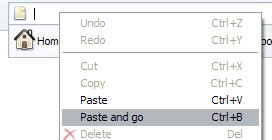
Paste and go (Screenshot)
This one really shows the attention to detail that the Opera team has. How many times have you copied a URL to the clipboard, only to go paste it in the address bar of your browser? Then you have to click go or press enter. With this handy feature, Opera saves you that second step. As the name suggests, you can paste and go all in one step!

Instant back and forward
I don’t think this is listed as an official feature, but it should be! In IE or Firefox, clicking back will usually take a few seconds for the previous page to reload – not so in Opera. As soon as you press back (or forward) the previous (or next) page is instantly there. Firefox is pretty good at this too, but Opera is quite simply superior.

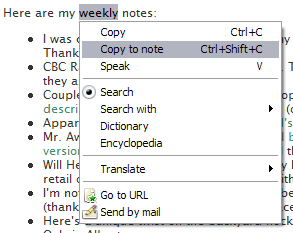
Highlighted Text Context Menu (Screenshot)
As soon as you highlight some text in Opera, a context menu appears with a bunch of useful commands at the ready. Again, it saves that extra step of right clicking after you have highlighted text. It might sound inconsequential, but it makes a huge difference.

Top 10 Sites (Screenshot)
Everyone has a set of websites they regularly visit. Opera is smart enough to keep track of these sites, and gives the ten most visited sites a special and easy-to-access menu. It’s kind of like automatic favorites. Very handy.

Notes
After experiencing this feature, you’ll wonder how you ever got by without it. Ever keep notepad open while browsing so you can copy things you might need later? No need to do so with Opera! Highlight any text and you can then turn it into a note, or you can manually create a note with whatever text you want. Notes are associated with a website too, so you can quickly see your notes for a given page. Incredibly useful feature.

Better Tabbed Browsing
All modern browsers have tabbed browsing, but none of them do it as well as Opera does. For one thing, tabs are ordered (say you have three tabs, A, B, C. Click on A, then click on C, then close C. Opera goes back to A, the other browsers go to B). Again with the attention to detail, right click on any link and you have two options: open in a new tab (which brings it to the front) or open in a new background tab (which does not). Awesome.

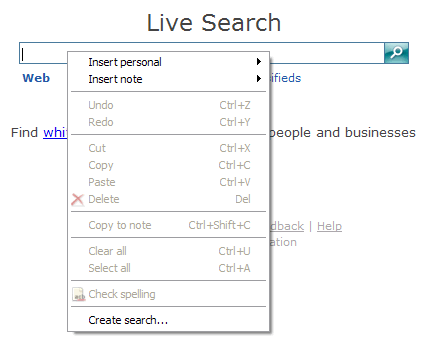
Search Keywords & Create Search (Screenshot)
IE and Firefox handle search engines pretty well (with the search box I mean), but it’s pretty much up to the site developer to help the browsers recognize the search engine. Not so in Opera. Right click in any search box and choose “Create search…” and automagically you have a new entry in your search engines. You can also associate keywords with engines. So for dictionary.com, you might associate “d”. Then you can type “d word” in the address bar, and Opera will take you there.

Mouse Gestures
Of all my favorite features, this one takes the most getting used to. Essentially mouse gestures allow you to navigate or modify the window using only the mouse. Just another small feature that can save you a bunch of time.

Trash Can
Have you ever closed a tab, only to realize a few moments later that you still need it? In other browsers you have to try to get back to the page again. In Opera, just click on the Trash Can, and choose the tab you closed. So damn handy.

Site Preferences
This feature gives you the ability to modify preferences only for a given site. Want to turn off javascript just for one site? Opera lets you do it. Not a feature you’ll use daily, but it can definitely come in handy.

Like I said, I could go on! If you like what you see, you should definitely try Opera. It’s completely free, and there are no advertisements inside (much older versions had a banner). And if you’re afraid your favorite sites won’t load correctly, don’t worry. It’s increasingly rare to find a site that doesn’t work correctly in Opera. And actually, Opera is the only Acid2-compliant browser for Windows!

In fact, I have just one problem with Opera – my del.icio.us page loads incredibly slowly. I have no idea why, but I’d like to get it fixed. If you have any ideas, let me know!

UPDATE: It appears Opera simply doesn’t like my huge list of tags. I changed my del.icio.us preferences to display as a cloud, and only tags with at least 5 items, and now it loads very quickly!

Read: Opera

A simple tip to make Outlook 2007 faster

Post ImageI use Outlook all the time, so the many problems I have found with the newest version drive me nuts. Especially the speed issue. As a result, I have spent far too much time looking for a solution. I think I finally found one though as Tris explains:

One of the big problems folks have been having with Office 2007 is Outlook. Frankly, it can be a serious dog. Sluggish, serious performance lags. All the things you don’t want in your “latest and greatest” e-mail client.

Looks like, thanks to Mack D. Male, there is a solution…I did this last night and I think it’s working.

I appreciate the nod Tris, but I’m just the messenger. Full thanks should go to Monty and Dell. Who’s Monty? Beats me. But he posted the message on the Microsoft discussion groups with the solution he got from Dell. Instructions are in the post, and in Tris’ post too, but basically the tip is to turn off all the addins in Outlook. You need to be running Outlook as an Administrator when you do this, and you should also restart Outlook after you turn them off.

I have tried this tip on two machines – one where Outlook is a POP3 client, and one where Outlook connects to Exchange. The biggest difference appears on the first one, but both seem faster when selecting messages, changing views, etc. Downloading mail doesn’t appear much faster yet. The only addin I left checked is the Windows Search Indexing.

Microsoft still needs to fix Outlook, but hopefully this tip will help you in the meantime. Let me know if it works for you!

Read: Pimp Your Work

Return of the portal? Not exactly

Post ImageOm Malik’s latest column in Business 2.0 deals with the topic of “hyperaggregation” – which is a fancy way of saying “aggregating the aggregators”. Basically, there is too much content available on the web from sites like YouTube and Flickr, and web software is evolving to help us consume it all. Om says:

Since the dawn of the Web, we’ve been plagued by too much information and too little time to consume it. It’s impossible to keep up with dozens of social networks, millions of videos, and thousands of blogs. Hyperaggregation is simply a way to do in the new-media world what old media has done for centuries: neatly package information.

Sounds a heck of a lot like the “portal” of the late 90s to me.

At least, that’s the first thing that came to mind. I thought about it a bit more though, and realized that hyperaggregation != portal. The main difference is that with hyperaggregation, you have control in most cases. Either explicit control, by entering tags or topics that you are interested in, or indirect control, by making a certain video the most popular. In the portal world, it was the portal alone that decided what content made it to the front page.

My gut “portal” thought wasn’t too far off though, as even Om admits:

Perhaps the biggest opportunity in hyperaggregation is for the biggest traditional Internet companies – the AOLs, Yahoos, and MSNs of the world.

I have to agree with Om. MSN shouldn’t be building their own video hosting service, they should be building the best video aggregator instead. Increasingly it will be the aggregator that people turn to first when looking for content.

Read: Business 2.0